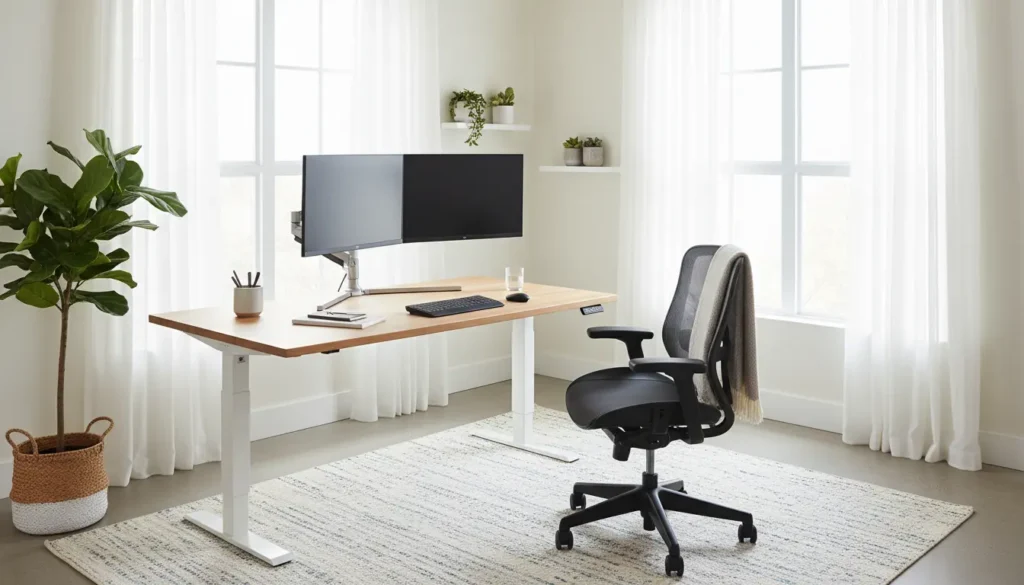
Home Office Ergonomics: Start With a Simple Assessment
Begin by evaluating your current setup with quick checks. Note pain points, posture, and where you place screens and input devices.
Use a checklist to capture problems and small wins. This assessment makes targeted changes faster and avoids unnecessary purchases.
Assessment checklist for home office ergonomics
- Do your feet rest flat on the floor or a footrest?
- Is the top of your monitor at or slightly below eye level?
- Is your keyboard positioned so your elbows are at 90 degrees?
- Do you take breaks and change posture every 30–60 minutes?
Home Office Ergonomics: Chair and Seating Setup

A supportive chair is the most important investment for daily comfort. Focus on lumbar support, seat height, and armrest positioning.
Adjust your chair so hips are slightly higher than knees and the lower back is supported. Avoid slouching forward or leaning heavily on one side.
How to set up your chair
- Set seat height so feet sit flat on the floor and thighs are parallel to the ground.
- Adjust lumbar support to fit the natural curve of your lower back.
- Set armrests to allow shoulders to relax and elbows to sit near 90 degrees.
Home Office Ergonomics: Desk and Monitor Placement
Desk height controls shoulder and neck strain. Your monitor height is critical for neck alignment and eye comfort.

Place the monitor about an arm’s length away. The top third of the screen should be near eye level so you look slightly downward at the content.
Monitor and desk tips
- Use a monitor riser or stack books to raise screens if needed.
- If you use a laptop, add an external keyboard and mouse to avoid craning your neck.
- Consider a sit-stand desk or an adjustable converter to change posture through the day.
Home Office Ergonomics: Keyboard, Mouse, and Input Devices
Input positioning affects wrist and forearm strain. Keep the keyboard and mouse within easy reach and at a height that allows neutral wrists.
Consider an ergonomic keyboard or vertical mouse only if standard devices cause discomfort after adjustment.
Quick setup for keyboard and mouse
- Place keyboard centered in front of you, allowing forearms to rest on the desk.
- Keep the mouse close to the keyboard and avoid reaching forward.
- Use a soft wrist rest for short tasks, but avoid resting wrists on it while typing for long periods.
Home Office Ergonomics: Lighting, Glare, and Screen Comfort

Proper lighting reduces eye strain and awkward postures from leaning toward or away from a screen. Balance natural and artificial light to avoid glare.
Position monitors perpendicular to windows when possible, and use blinds or task lighting to control brightness.
Eye comfort tips
- Use a desk lamp that illuminates paperwork without reflecting on the screen.
- Adjust screen brightness to match room lighting; enable blue light filters if needed.
- Follow the 20-20-20 rule: every 20 minutes, look at something 20 feet away for 20 seconds.
Home Office Ergonomics: Movement, Breaks, and Micro-Exercises
No setup eliminates the need to move. Regular movement prevents stiffness and helps concentration.
Schedule short breaks, stand, and perform simple stretches or walking for a few minutes every hour.
Simple micro-exercises
- Neck tilts and rotations: 5–10 slow reps each side.
- Shoulder rolls: 10 forward, 10 backward.
- Standing calf raises and quad stretches during short breaks.
Home Office Ergonomics: Affordable Upgrades and Practical Accessories
You don’t need expensive gear to improve ergonomics. Small changes can yield noticeable benefits.
Prioritize adjustments that directly reduce pain or improve posture before buying new equipment.
Budget-friendly options
- Use a firm cushion for lumbar support or a rolled towel.
- Stack books as a monitor riser or use a laptop stand for proper height.
- Buy an inexpensive external keyboard and mouse if you work on a laptop.
Case Study: One Small Setup Change, Big Relief
Sarah, a freelance writer, developed persistent neck tension after months of remote work. Her screen sat too low and she leaned forward to read.
After raising the monitor to eye level, adding lumbar support, and using a short break schedule, the tension reduced within two weeks. She reported better focus and fewer headaches.
Home Office Ergonomics: Quick Implementation Plan
Follow this short plan to implement changes in one afternoon.
- Do a 10-minute assessment and identify top two problems.
- Adjust chair height and lumbar support.
- Raise monitor and reposition keyboard/mouse.
- Set a reminder to take movement breaks every 45 minutes.
Home Office Ergonomics: Final Notes
Ergonomics is iterative. Small adjustments and regular movement often deliver more benefit than a single large purchase.
Track changes and comfort over a few weeks. If pain persists, consult a healthcare professional for personalized advice.