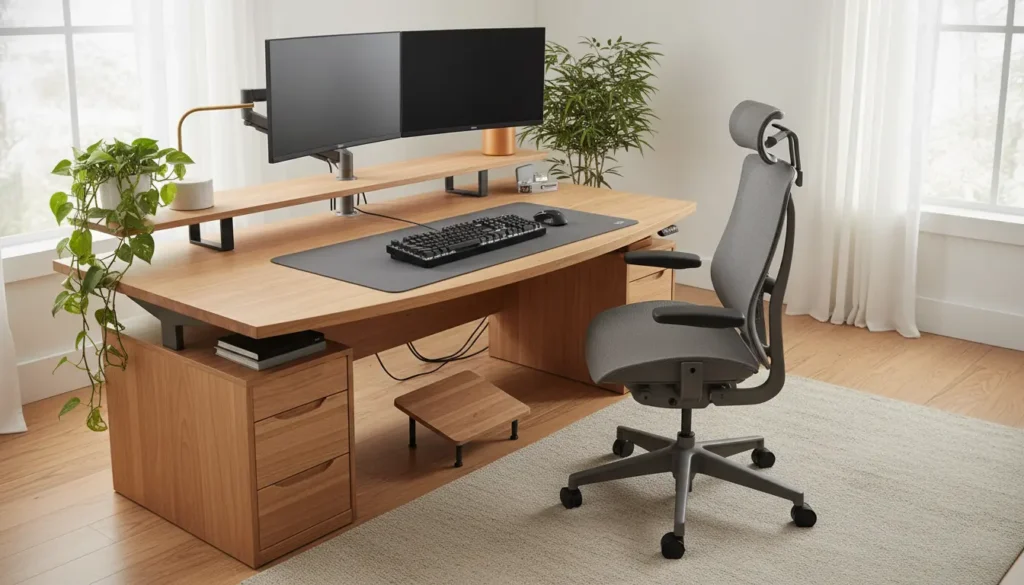
Assessing Your Home Office Ergonomics
Start by checking how your body feels after a typical workday. Note any neck, shoulder, back, wrist, or eye strain as clues to what needs changing.
Use simple measurements: seat height relative to knees, monitor distance from eyes, and keyboard position. These baseline checks guide the fixes you make next.
Desk and Chair Setup for Home Office Ergonomics

Your desk and chair are the foundation of good ergonomics. Aim for neutral joint positions and easy reach to frequently used items.
Chair Adjustments for Better Support
Adjust seat height so feet rest flat on the floor and knees are at about a 90-degree angle. Support the lower back with the chair’s lumbar support or a small cushion.
Ensure armrests allow shoulders to relax and that you can bring the chair close to the desk without strain.
Desk Height and Workspace Layout

Desk height should let your forearms be parallel to the floor when typing. If your desk is too high, lower the chair and use a footrest to maintain good posture.
Keep frequently used items within a 20-inch reach to prevent repetitive stretching and twisting.
Monitor, Keyboard, and Mouse: Key Home Office Ergonomics
Proper monitor, keyboard, and mouse placement reduces neck and wrist strain. Small changes here produce big comfort gains.
Monitor Placement

Place the top of the monitor at or slightly below eye level and about an arm’s length away. Tilt the screen slightly upward to reduce glare and neck bending.
Keyboard and Mouse Position
Keep the keyboard centered with your body and the mouse close to avoid overreaching. Use a light-touch typing technique and consider a split or angled keyboard if you have wrist pain.
For mouse use, keep your wrist straight and use the whole arm to move the mouse rather than just the wrist.
Lighting, Screen Glare, and Eye Comfort
Good lighting reduces eye strain and headaches. Position your monitor perpendicular to windows if possible to avoid direct glare.
Use adjustable desk lamps for focused tasks and set monitor brightness and contrast to comfortable levels. Follow the 20-20-20 rule: every 20 minutes, look at something 20 feet away for 20 seconds.
Movement and Microbreaks for Home Office Ergonomics
No setup is perfect if you stay still for hours. Plan short breaks and small posture changes throughout the day.
Examples of microbreaks:
- Stand and stretch every 30–60 minutes for 1–2 minutes.
- Walk to get water or do a few shoulder rolls and neck rotations.
- Do simple wrist and finger stretches if you type a lot.
Simple Exercises to Support Ergonomics
Incorporate quick exercises to maintain mobility and reduce tension. These can be done at your desk or nearby.
- Chin tucks: 8–10 reps to relieve forward head posture.
- Seated pelvic tilts: 10 reps to engage lower back and core.
- Thoracic rotations: 8 reps each side to open the upper back.
A raised monitor by just 2 inches can reduce neck flexion by up to 15 percent, lowering the risk of neck pain over time.
Tools and Accessories That Improve Home Office Ergonomics
Small accessories can make your setup much more ergonomic. Choose tools that match your body and work habits.
Helpful items include:
- Adjustable monitor stands or risers.
- Ergonomic keyboards and vertical mice.
- Footrests, lumbar cushions, and sit-stand desks.
Case Study: Quick Win From a Home Office Ergonomics Change
Alex, a graphic designer working from home, experienced daily neck and shoulder pain after long design sessions. He followed a focused ergonomics checklist and made three changes.
Changes Alex made:
- Raised his monitor 2.5 inches and centered it with his keyboard.
- Lowered his chair and added a footrest to keep knees at 90 degrees.
- Set a timer for 45-minute work blocks with 5-minute movement breaks.
After two weeks Alex reported 70% less neck pain and improved focus. These small, consistent changes delivered measurable results.
Quick Home Office Ergonomics Checklist
Use this checklist to review and tune your workspace. Spend 10–20 minutes to test and adjust each item.
- Monitor top at or slightly below eye level and arm’s length away.
- Feet flat on floor or footrest; knees at ~90 degrees.
- Forearms parallel to the floor; wrists straight while typing.
- Mouse close to keyboard and used with full-arm movement.
- Lighting adjusted to avoid glare and reduce eye strain.
- Movement breaks planned every 30–60 minutes.
Final Steps to Maintain Good Home Office Ergonomics
Revisit your setup regularly and change positions during the day. Small, repeated adjustments keep your body comfortable and productive.
If pain persists despite ergonomic adjustments, consult a healthcare professional or occupational therapist for personalized guidance.